If your phone was lost or stolen, we strongly recommend that you change your BGL 360 password. This will help prevent others from accessing your BGL Account from your phone.
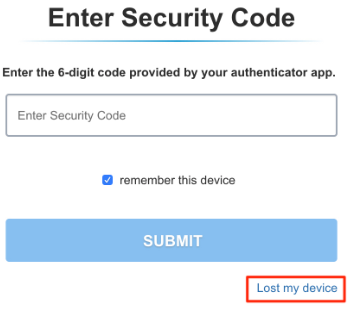
From the Enter Security Code page, click on the Lost my device link.
Enter your email address, mobile phone number and the Captcha Code
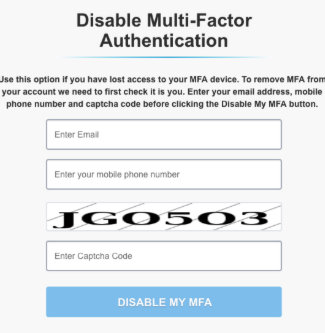
- Click DISABLE MY MFA
- If all details are correct you will receive an email which will allow you to disable MFA.
- Click on the link in the email
- A confirmation message will display on the login page. You can now sign in with MFA disabled.
- You may proceed to set up MFA with a new device.
Alternatively, Account Owners can turn off MFA for users in their BGL subscription.
- This can be completed via the User Manager page:
Once completed, the user receives an email notifying them that their MFA has been disabled by the Account Owner. They can then proceed to login and set up their MFA again.