Overview
Shares previously issued to members are cancelled.
Navigation
|
From the Main Toolbar, go to Company |
 |
|
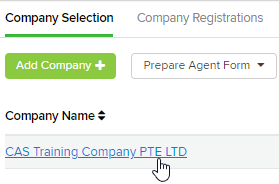
Select the Company from the list |
 |
|
Select Shareholders |
 |
Click 
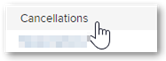
Select Cancellations
Instructions
CAS 360 will display the Cancellations screen

|
Field |
Explanation |
|
Transaction Date |
Input the date of the cancellation |
|
Shareholder |
CAS 360 will display a list of the company's current shareholders |
|
Beneficial Owner |
CAS 360 will automatically prefill this field if there is a beneficial owner. |
|
Share Type |
CAS 360 will display a list of the share types the shareholder holds |
|
Number of Shares |
Input the relevant number of shares cancelled |
|
Total Cancellation Amount Paid |
Input the amount the person will receive from the company for the shares cancelled. |
|
Total Cancellation Amount of Issued Share Capital |
Enter the amount payable for issued share capital in decimals. |
|
Total Cancellation Amount of Paid up Share Capital |
Enter the amount of paid up share capital in decimals. For changes to partly paid shares, click here. |
|
Cancellation Type |
Select the Type of Cancellation |
|
Meeting Status |
Select the meeting status of the member which will display on the Members Minutes |

|
Field |
Explanation |
|
Certificate Type |
Select the Certificate Type. Choose between Balance or None |
|
Certificate Number |
CAS 360 will automatically pre-fill a number based on previous shareholder transactions. |
|
Certificate Location |
Enter the location of the Certificate |
|
Unique Numbers |
Type a Unique Number to assign to the shares |
Click 
Forms Prepared
By selecting Prepare Forms  CAS 360 will display the Document Production screen and automatically select the documents required
- Cover Letter
- Register of Members
- Allotment Journal
- Directors Minutes or Resolution
- Notice of EGM
- Members Minutes or Resolution
- Members Consent to Short Notice
- Company Change Summary
- Share Certificate
Select the  icon to change any of the document settings. Different options will appear depending on the document type.